At a glance
- Atlanta's telecom & IT infrastructure experts since 1998
- Network cabling · structured cabling · low voltage cabling
- Fiber optic installation & fiber optic repair
- Business phone systems · Cloud VoIP · VoIP phone systems
- Business WiFi · MDF & IDF buildouts · office relocations
- Metro Atlanta, North Georgia & the Southeast
Atlanta's telecommunications & IT infrastructure experts.
Since 1998, DataTel 360, Inc. has helped Atlanta businesses design, install, support, and maintain network cabling, structured cabling, fiber optic networks, business phone systems, Cloud VoIP, VoIP phone systems, business WiFi, low voltage cabling, and MDF/IDF infrastructure. We are an Atlanta-based telecommunications and IT infrastructure contractor serving metro Atlanta, North Georgia, and the greater Southeast.
Have offices outside Atlanta? We can help there too.
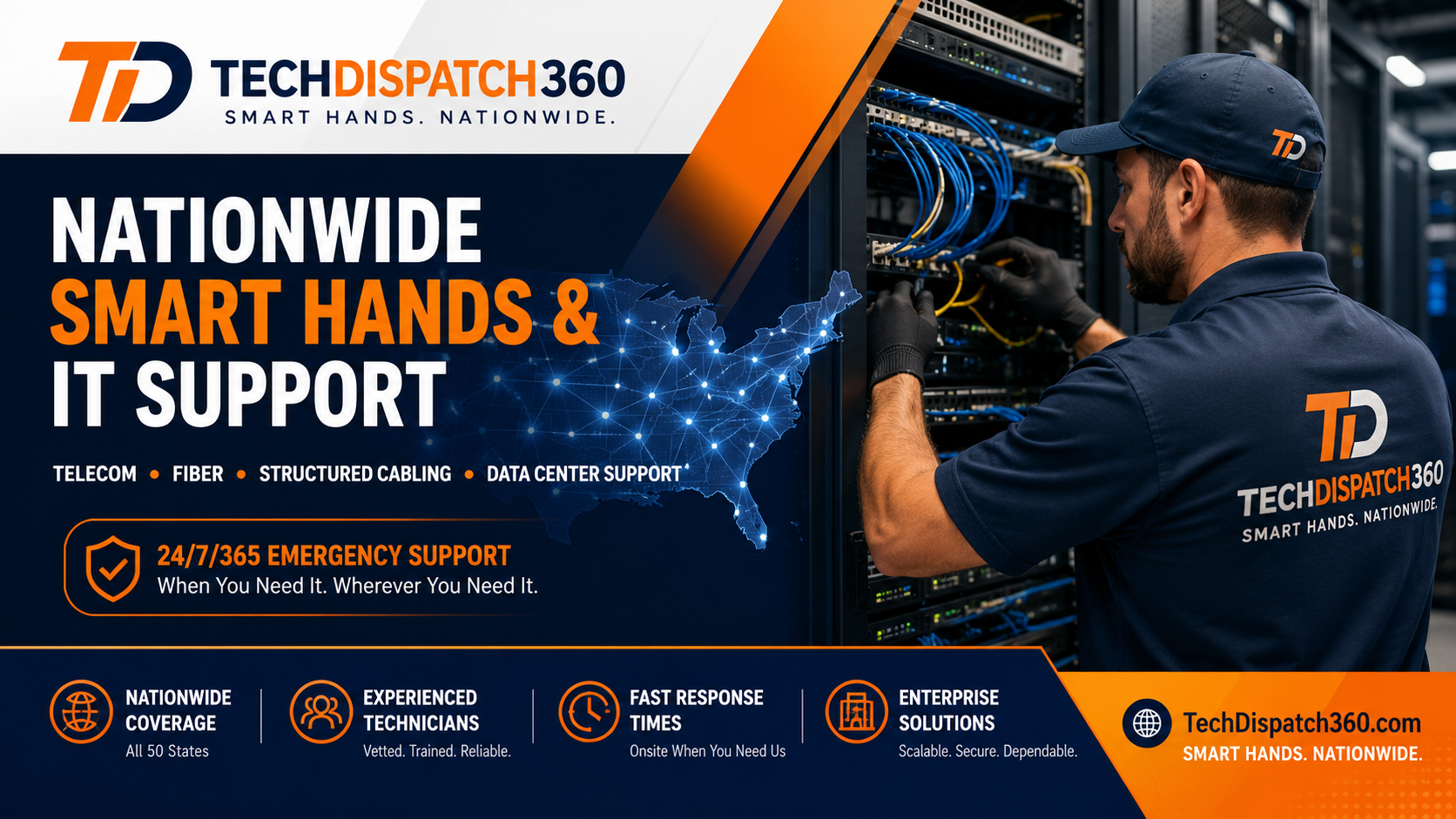
For multi-location businesses, remote offices, branch locations, retail sites, and out-of-state projects, TechDispatch360 provides nationwide smart hands, remote hands, IT dispatch, cabling support, rack and stack, troubleshooting, and field technician coordination.
If your business has offices in other cities, DataTel 360 can still help through TechDispatch360 — our nationwide smart hands and remote hands support division.
Visit TechDispatch360Why Atlanta businesses choose DataTel 360.
Established 1998
More than 25 years serving Atlanta businesses.
Atlanta Based
Local crews, locally dispatched across metro Atlanta.
Senior Telecom Engineers
Experienced engineers on every project, not just installers.
Commercial & Enterprise Focus
Built for offices, warehouses, healthcare and more.
Fiber & Structured Cabling Specialists
Backbones, drops, terminations and certified results.
Emergency Support Available
Rapid response when your network or phones go down.
Get a quote. Call us. Or get emergency help.
Three direct ways to reach DataTel 360 in Atlanta — pick the one that fits your project or your situation.
Request a Quote
Cabling, fiber, business phone systems, Cloud VoIP, WiFi, or a full office buildout — describe your project in plain English and we'll handle the technical part.
Get a QuoteCall or Email
Talk to a DataTel 360 engineer. Email sales@datatel360.com for projects or support@datatel360.com for service.
770-441-9999Emergency Support
Network down? Fiber cut? Phones offline? DataTel 360 provides rapid emergency telecom support for Atlanta-area businesses.
Get Emergency HelpCommercial telecom & network infrastructure in Atlanta.
DataTel 360 designs, installs, and supports the technology backbone Atlanta businesses run on — network cabling and structured cabling, fiber optic installation and repair, business phone systems, Cloud VoIP, business WiFi, low voltage cabling, MDF/IDF buildouts, and office relocations.
Network Cabling & Structured Cabling Atlanta
Commercial network cabling — Cat6 and Cat6A installation, voice/data drops, patch panels, tested and documented. Atlanta's data cabling contractor for clean, reliable installs.
Network & structured cablingFiber Optic Installation & Repair Atlanta
Single-mode and multimode fiber optic installation, fusion splicing, fiber patch panels, OTDR-certified testing, and fast fiber optic repair for Atlanta business networks.
Fiber install & repairBusiness Phone Systems Atlanta
Business phone systems for Atlanta offices — modern hosted platforms plus support for legacy on-premise PBX systems, programming, and full replacements.
Business phone systemsCloud VoIP & VoIP Phone Systems Atlanta
Cloud VoIP and VoIP phone systems — hosted PBX, SIP trunking, UCaaS, mobile apps, auto attendants, and zero-downtime cutovers for Atlanta businesses.
Cloud VoIP systemsBusiness WiFi Atlanta
Business WiFi design and installation — coverage surveys, ceiling-mounted access points, PoE switching, guest networks, warehouse WiFi, and internet failover.
Business WiFi solutionsLow Voltage Cabling Atlanta
Low voltage cabling for data, voice, WiFi, and IP security camera systems — Atlanta's low voltage contractor for new construction and existing buildings.
Low voltage cablingMDF & IDF Buildouts Atlanta
MDF and IDF rooms designed and built — racks, patch panels, terminations, cable management, labeling, and complete documentation at turnover.
MDF / IDF buildoutsOffice Relocations
Coordinated office and technology relocations — cabling, phones, internet, and WiFi planned and cut over so your business is ready on day one.
Office relocationsCommercial network infrastructure — the full stack
Beyond the core services above, DataTel 360 handles the deeper commercial technology infrastructure layer for Atlanta businesses — from new-construction low voltage design to network troubleshooting and cable certification.

Fiber optic cabling, fusion splicing & fiber optic repair.
DataTel 360 designs, installs, splices, tests, and repairs fiber optic cabling for Atlanta businesses — single-mode and multimode backbones, building-to-building links, fiber patch panels, and OTDR-certified results. When a strand is cut or a backbone goes dark, our Atlanta fiber team responds fast.
Business WiFi & low voltage cabling.
DataTel 360 is an Atlanta low voltage contractor for the whole connected workplace — business WiFi, IP security camera cabling, and the structured cabling backbone that ties it together.
Business WiFi installation & wireless networks
DataTel 360 installs and supports business WiFi for Atlanta offices and warehouses — coverage surveys, ceiling-mounted access points, PoE switching, guest networks, and internet failover for reliable connectivity.
- Ceiling-mounted access points
- PoE switches
- Wireless coverage surveys
- Warehouse WiFi
- Office & enterprise WiFi
- Guest networks
- Internet failover
- WiFi troubleshooting

IP security camera & low voltage cabling
DataTel 360 provides low voltage cabling for IP security cameras — PoE camera drops, NVR connectivity, and structured cabling for surveillance — and coordinates with your security vendor when needed.
- IP security cameras
- PoE camera cabling
- Camera network drops
- NVR connections
- Warehouse & office cameras
- Access control rough-in
- Low voltage cabling
- Cabling for surveillance


Business phone systems & Cloud VoIP in Atlanta.
DataTel 360 supports the full business phone spectrum for Atlanta companies — Cloud VoIP, VoIP phone systems, SIP trunking, UCaaS, and continued support for legacy on-premise PBX systems.
Modern Cloud VoIP and unified communications — call, message, and meet from any device.
- Hosted PBX & Cloud VoIP
- SIP trunking
- UCaaS & softphones
- Auto attendants & call queues
- Voicemail-to-email
- Desk & conference phones
Support for legacy on-premise systems plus a clean migration path to hosted voice.
- Legacy PBX support
- Move-add-change work
- Cutover with zero downtime
- Number porting
- Hybrid migrations
- Programming changes
AI-powered call handling that answers, qualifies, and routes smarter.
- AI receptionist (Zultys)
- Intelligent call routing
- Virtual call handling
- Cloud collaboration
AI receptionist & smarter call routing
Reduce missed calls and serve callers around the clock — works alongside your existing phone system.
Serving metro Atlanta businesses since 1998.
DataTel 360 has been an Atlanta-based telecommunications and IT infrastructure contractor for more than 25 years. We know the buildings, the property managers, and the realities of commercial work across metro Atlanta and North Georgia — from downtown high-rises and Class-A office towers to warehouses, medical offices, and multi-tenant buildings.
Whether you need network cabling in Atlanta, fiber optic installation, a business phone system, or business WiFi, our local crews show up, do clean work, and document it. Need service beyond the metro? We also support clients across the Southeast.
Why businesses choose DataTel 360.
Atlanta businesses keep coming back to DataTel 360 for the same reasons — deep local experience, senior engineering, and clean, documented work on every job.
Established 1998
In business since 1998, with deep roots in the Atlanta commercial market.
Atlanta Based
A local Atlanta company — not a national call center or out-of-state dispatcher.
Senior Engineers
Senior-level engineering on design, installation, and ongoing support.
Commercial Focus
Focused on commercial and enterprise environments, not residential work.
Vendor Neutral
We recommend what fits your business — not whatever one brand pays us to sell.
Fiber Specialists
Fusion splicing, OTDR testing, and certified single-mode and multimode fiber.
Structured Cabling Experts
Clean, standards-based Cat6/Cat6A drops and backbone cabling.
Emergency Response
Rapid response for urgent network, fiber, and phone outages.
Clean & Documented Installations
Labeled, tested, photographed, and fully documented at turnover.
Real DataTel 360 project work.
Real-world experience across Atlanta and Georgia — structured cabling, fiber backbones, business phone deployments, WiFi rollouts, MDF/IDF buildouts, and commercial office relocations.

JAS Forwarding — warehouse cabling
Structured cabling and network infrastructure supporting warehouse and office operations for a global logistics provider.

Fiber backbone installation
Single-mode and multimode fiber backbone linking multiple buildings — fusion-spliced, OTDR-tested, and certified.

Business phone system deployment
Cloud VoIP cutover with number porting, auto attendants, and desk phones — migrated from an aging on-prem PBX with no downtime.

WiFi deployment
Survey-driven access point rollout with PoE switching and failover for reliable coverage across an office floorplate.

MDF & IDF buildouts
Main and intermediate distribution frames built, terminated, dressed, labeled, and documented for clean future support.
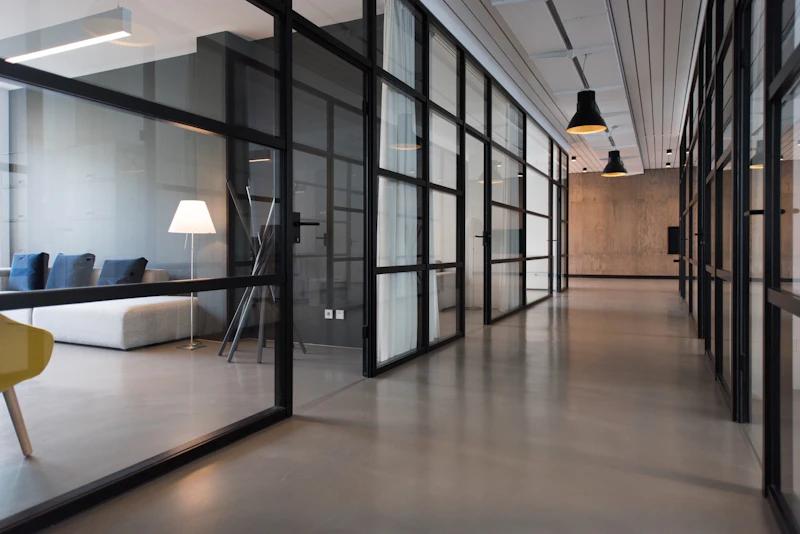
Commercial office relocation
Coordinated technology move — cabling, phones, internet, and WiFi planned and cut over so the team was ready on day one.
Cloud VoIP rollout
Hosted VoIP deployed across multiple Atlanta-area locations — number porting, auto attendants, and softphones unified on one platform.

Downtime is costing your business money. We respond fast.
When your network, fiber, phones, or WiFi go down, DataTel 360 provides rapid emergency telecom support for Atlanta-area businesses — urgent cabling, fiber optic repair, phone system, and network issues handled by experienced local techs.
Industries we serve.
Atlanta network cabling, fiber, business phone systems, WiFi, and low voltage cabling — tuned to the realities of each industry across metro Atlanta and Georgia.
Healthcare
HIPAA-aware cabling, low voltage, and reliable connectivity for clinical staff.
Warehousing
Warehouse WiFi coverage, scanners, PoE cameras, and dock-door networking.
Distribution
High-bay wireless, cabling, and infrastructure for distribution centers.
Manufacturing
Plant-floor cabling, industrial WiFi, and resilient network infrastructure.
Retail
Cabling, WiFi, phones, and camera infrastructure for storefronts and chains.
Hospitality
Guest WiFi, voice, and low voltage cabling for hotels and venues.
Property Management
Tenant fit-outs, risers, MDF/IDF rooms, and building infrastructure.
Corporate Offices
Cat6/6A cabling, Cloud VoIP, WiFi, and conference-room technology.
Construction
New-construction low voltage design, rough-in, and trim-out for GCs.
Professional Services
Reliable cabling, phones, and WiFi for law, finance, and consulting firms.
A clear, predictable delivery process.
Built for Atlanta general contractors, IT teams, property managers, and facility leaders who need accurate scope, on-time execution, and documented installs at turnover.
Walk & scope
Onsite walk-throughs across cabling, voice, WiFi, and MDF/IDF needs.
Design & quote
Clean, itemized proposal — counts, materials, locations, and timelines.
Install
Senior engineers and field techs onsite — neat workmanship, safety-first.
Test & document
Tested and documented installs — labeled, photographed, signed off.
Support
Ongoing support and emergency response for Atlanta-area businesses.
Where we work in metro Atlanta.
DataTel 360 dispatches network cabling, fiber optic, Cloud VoIP, WiFi, and low voltage crews throughout metro Atlanta and North Georgia — including Buckhead, Midtown, Decatur, and the major OTP suburbs.
- Atlanta
- Alpharetta
- Roswell
- Marietta
- Sandy Springs
- Kennesaw
- Woodstock
- Canton
- Ball Ground
- Duluth
- Norcross
- Lawrenceville
- Buford
- Decatur
- + North Georgia
Ready to talk cabling, fiber, phones or WiFi?
Whether it's a Cat6 buildout, a fiber backbone, a Cloud VoIP cutover, a business WiFi rollout, or an office relocation, DataTel 360's senior engineers are ready. Atlanta-based, serving metro Atlanta and Georgia since 1998.
Atlanta cabling, fiber & phone questions.
Don't see your question? Request a quote, call 770-441-9999, or email support@datatel360.com.